Assign Rooms with Inventory Blocks
When users enter a room number in the Change Room pop-up screen for a room that has an Inventory Block (Out of Order, Off the Market, On Hold) created for the reservation’s duration of stay, the following alerts are displayed in the Change Room pop-up screen:
-
This room is currently On Hold. Please see below for more information.
-
This room is currently Out of Order. Please see below for more information.
-
This room is currently Off the Market. Please see below for more information.
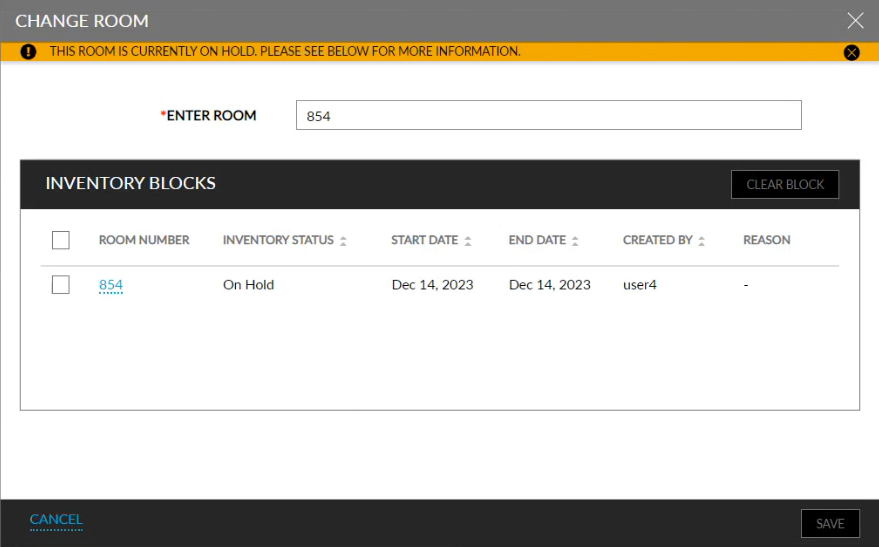
When the room number is selected, the Clear Block option will be enabled. When clicked, the Clear Inventory Blocks pop-up screen appears that prompts users to confirm if the block must be cleared for the selected room.
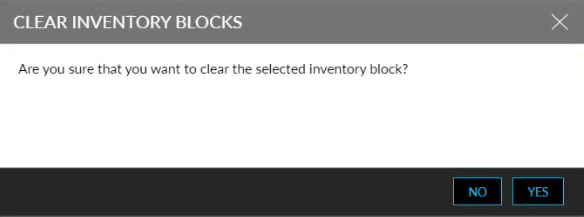
When the selected room is from the same room type as the current reservation and has an On Hold inventory block, the block is cleared, and the room is assigned to the current reservation.
When the selected room is from a different room type as the current reservation and the user clicks Yes, the Modify Stay screen appears. When users select a new rate plan with which the room type is associated, the selected room is assigned to the current reservation.
The Off the Market (OTM) and Out of Order (OOO) inventory blocks cannot be cleared using the Clear Block option.